
With SVG Support active, you can use SVG files as featured images just like any other image format — with one bonus: you can render your featured SVG inline on a per-post basis, unlocking CSS styling and animation for it.
Using an SVG as a featured image
Nothing special required: set it in the Featured image panel like you would a JPG or PNG.
Rendering the featured SVG inline
- Make sure Advanced Mode is enabled in Settings → SVG Support.
- Add your featured SVG like you would any regular featured image.
- Publish, Save Draft, or Update the post.
- Once the screen reloads, tick the new checkbox below the featured image to render your SVG inline.
- Publish, Save Draft, or Update the post one final time.
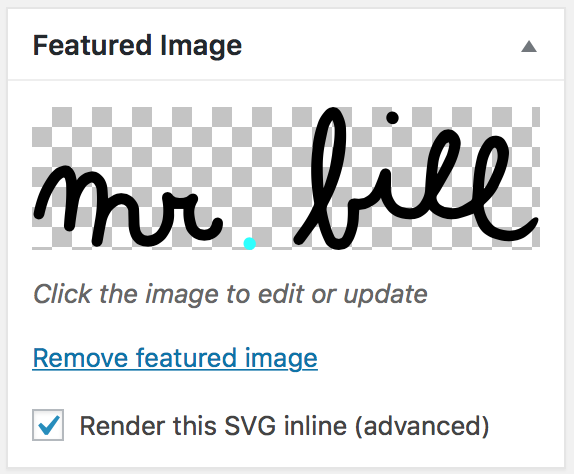
Your featured image is now output as real inline SVG code in your theme, so everything from the styling & animation tutorial applies to it too.
Not seeing the checkbox? It appears after the post has been saved at least once with the SVG set as featured image, and only when Advanced Mode is on.